Speaker names in a transcript, exporting and sharing
Author: Mert S. Kaplan · Last updated: November 5, 2026
In LiveType, setting speaker names in a transcript means replacing the automatic “Speaker 1” label with a real name: Click the label in the text, type the name, and all of that person’s paragraphs change. This help page covers what comes after transcribing: Speakers, exports, sharing and version history.
Turning speaker separation on and off
Speaker separation is on by default. Turn it off with Tell speakers apart in the Settings window, and your choice applies to later transcripts too. While it is on, a numbered label appears when a new voice is heard, and a change of speaker starts a new paragraph.
If one person is talking or it does not matter who speaks, turning it off lightens the load on your device. Also turn it off if you have no legal basis, since voice prints may count as biometric data. They stay encrypted on your device only and are deleted after 60 days without use.
Try it on your own recording
No card needed. 30 minutes of transcription on the free plan.
Naming and merging speakers
- Naming: Click a label in the text and type. It changes in all of that person’s paragraphs. Left empty, it goes back to the number.
- One person under two numbers: Give both labels the same name and they become one person. Their voice prints merge too, so later speech is recognised as one. The method errs on the side of splitting, so this is common.
- Two people under one number: Naming cannot separate them. There is also no button that moves a paragraph to another speaker, so mark the parts that matter by hand in the text.
Names are kept with the transcript, and people you share it with see the same ones. AI transcription accuracy explains why separation behaves this way.
Export formats compared
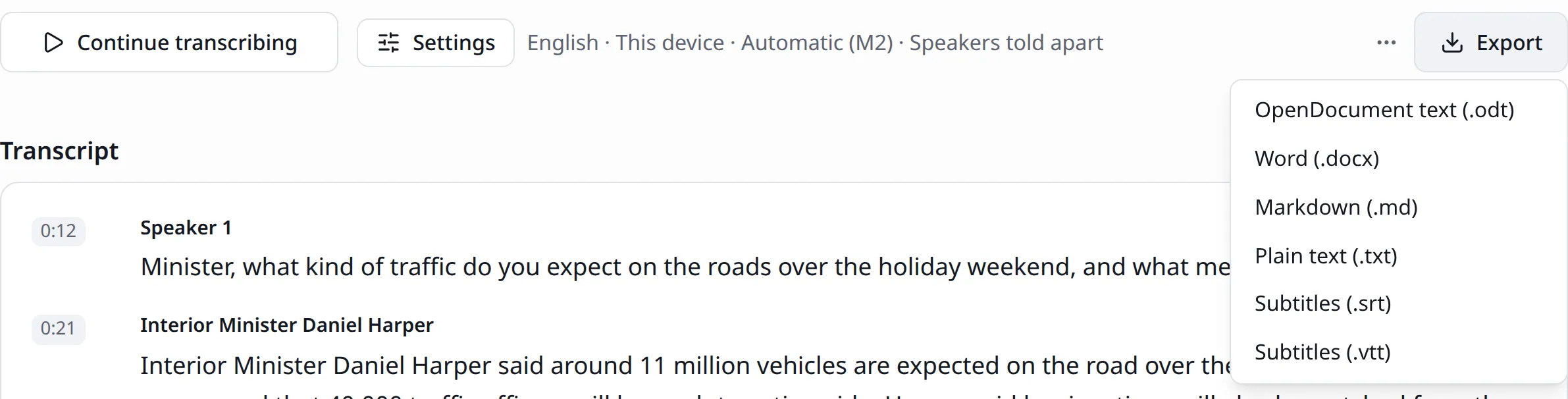
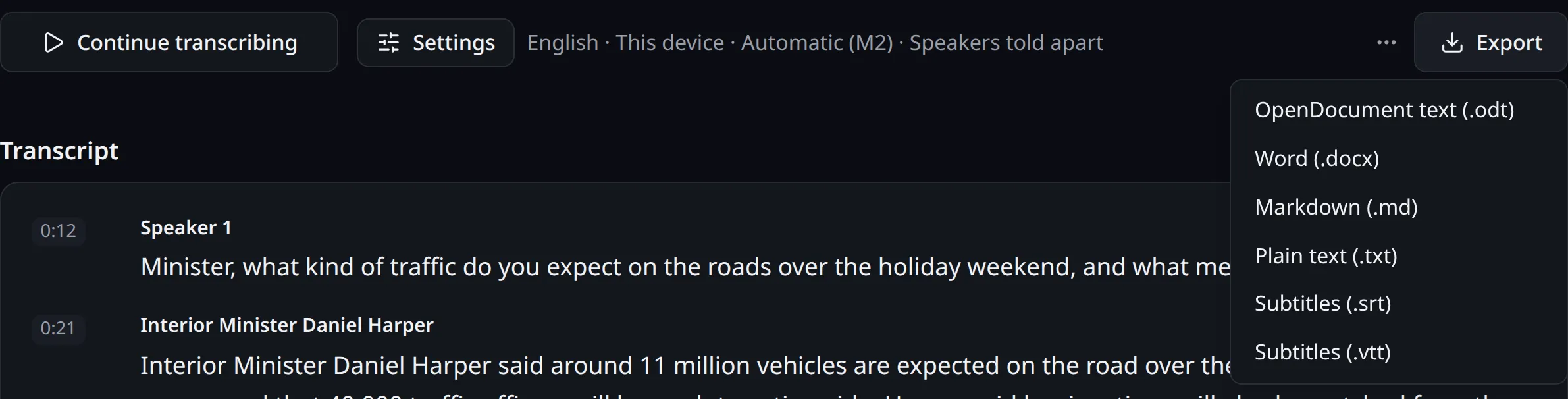
The Export menu builds the file in your browser and downloads it. The download icon beside each transcript in the list does the same.
| Format | Where it helps | Speaker name | Times |
|---|---|---|---|
| Word (.docx) | Word, Google Docs | At paragraph start, bold | No |
| OpenDocument (.odt) | LibreOffice | At paragraph start, bold | No |
| Markdown (.md) | Note apps, the web | At paragraph start, bold | No |
| Plain text (.txt) | Anywhere, analysis tools | At paragraph start | No |
| SRT, VTT | Subtitles, video programs | Within the text | Yes |
The speaker’s name is written only when the speaker changes. The subtitle generator covers subtitle files, and audio to Word transcription covers documents. Transcripts are deleted when your plan’s retention period ends, so download what you want to keep.
Sharing with your team
If you are in a team, use Share at the top of the transcript page to choose which teams to share with. Members open the text and edit at the same time, seeing each other’s cursors and names. You can work together while transcription runs as well.
Only the owner changes sharing or deletes a transcript. When the list grows, the Select button lets you share several at once. Opening a team needs a team plan: See pricing.
The public link
In the same window, turning on Public link opens the transcript’s own address to people without an account. They can read and download it, and see the media if it comes from a stream, but they cannot change it. This right belongs to team plans and team members.
The page is closed to search engines, but anyone with the address can read it. Do not use it for text with personal data: See KVKK and voice recordings. Turn it off and the link stops working.
Version history: Going back
More → Versions keeps earlier states of the transcript. Choose one to see what would change: Green comes back, red goes. Restore this version first saves the current state as a version too, so going back loses nothing. The change reaches everyone with it open. You cannot restore while transcribing, so stop first. Old versions are removed after a period given in the privacy notice.
Original text: What the engine wrote first
More → Original text keeps what the engine wrote first. Show original marks in red what was in the original and changed, and in green what was written later. Find deleted lists removed passages of at least three words with their time and speaker, and clicking a time takes the recording there.
This helps to find a passage deleted by mistake, or to show what you changed in research. If you are anonymising, remember that old names still show here and in versions, so export a clean file to share it. For the first steps, go back to your first transcript.

Works in news, software and design; founder of LiveType. Worked as a reporter for many years. Has done SEO consulting, content editing and reporting for several online news sites, and has developed many pieces of software. Currently works in the press office of the Turkish Medical Association and provides SEO support to Elips Haber.
Related pages
Try it on your own recording
No card needed. 30 minutes of transcription on the free plan.