Cloud transcription, credit and remote devices: Where to transcribe
Author: Mert S. Kaplan · Last updated: November 5, 2026
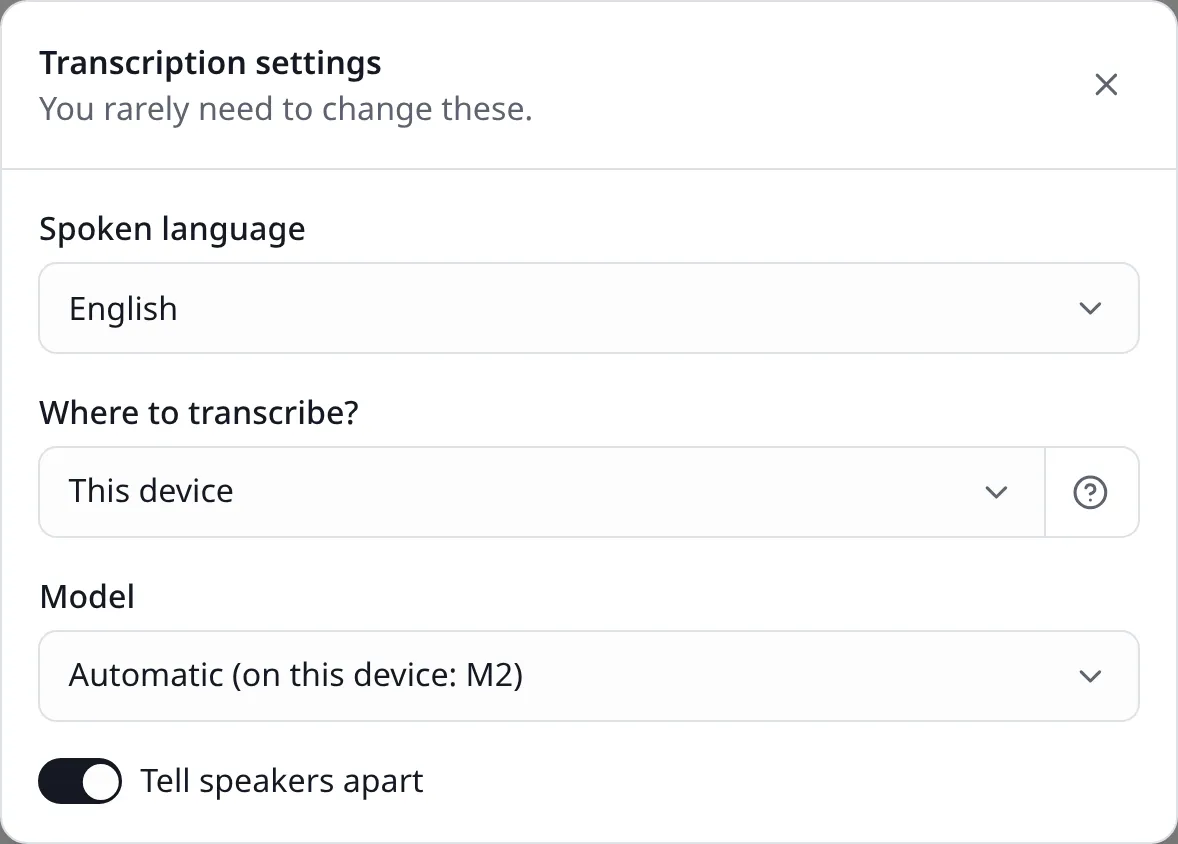
In LiveType, cloud transcription turns speech into text on a provider’s servers instead of your own device, so another computer does the work. The Where to transcribe? field in the transcript page’s Settings offers four choices: This device, the cloud with your own key, credit cloud and a transcriber device. Your device’s power and where the sound may go decide between them.
The four options at a glance
| Option | Where the sound goes | What it needs | Good for |
|---|---|---|---|
| This device | Nowhere | A model download, ideally a graphics card | Private talks, strong devices |
| Your own key | From the browser straight to the provider | An API key | Weak devices, your own provider account |
| Credit cloud | Through our server, unsaved, to the provider | Purchased time | No key to manage |
| Transcriber device | Encrypted and peer to peer to that device | A second device left on | Sound from a phone, transcribing on a desktop |
In every case the text goes into the same transcript and is edited the same way:
Try it on your own recording
No card needed. 30 minutes of transcription on the free plan.
When the cloud, when the device?
Three questions usually settle it:
- Is the talk sensitive? Then stay on this device: Private transcription explains why.
- Does your device keep up? A computer with a graphics card handles most jobs. If it falls behind, try a smaller model first.
- Can you download the model? On a phone, an old computer without a card or a network that blocks downloads, the cloud is easier.
In the cloud text arrives in pieces and there is no faint text, because each piece is written when it finishes. You feel that difference in live work. AI transcription accuracy explains why.
Adding an API key: Groq, OpenAI and compatible services
Under My account → Cloud transcription, choose the provider, name the key and paste it. Groq, OpenAI and other OpenAI-compatible services work. Then choose that key in Where to transcribe? on the transcript page. For a free start, see our free Groq API key steps.
Good to know:
- Costs and limits come from the key’s own plan.
- You are warned as the key nears its limit, and very close to it the key cannot be chosen.
- Files over two hours cannot use the cloud and are transcribed on the device.
- Transcribing with your own key still counts against the free plan’s time.
Credit packages
Cloud transcription credit is a package of time on top of your plan. No model on your device and no key to get: A large model runs with the operator’s key. Once you have a package, this option appears in the field with the time left.
- Time used comes off your credit, not off the free plan’s minutes.
- When credit runs out transcription stops, and the text written stays.
- Team owners can share credit with members on the Team page; everyone’s use comes off the owner’s credit.
- The sound passes through our server, unsaved, to the provider.
See the packages on the pricing page.
Remote device: Using a powerful computer
With a phone in the field and a computer with a graphics card at the office, let the computer do the work. The phone only sends the sound and the computer writes the text. The sound does not pass through the server.
- On the strong device, go to Transcriber device on My account, press Make this device a transcriber, then Open as transcriber. Keep the page open.
- On the device taking the sound, open the transcript with the same account.
- In Settings → Where to transcribe? choose that device and start.
You can use your own devices on any plan. To use a colleague’s transcriber, share the transcript with the team first; if it is busy you wait in a queue. On a remote device files run in real time, so they take as long as the recording.
When the link breaks
The transcriber route has safeguards for drop-outs. Sound gathers on the source device and goes when the link returns, picking up where it stopped, and the backlog is processed too. This wait lasts up to two hours; beyond that the oldest sound is dropped.
The source does not start transcribing by itself, so the choice is yours: Continue on this device, or send it to another transcriber. If the transcriber you chose is not open at all, transcription runs on this device. Some company networks do not allow a direct link between two devices, and we use no relay server, so in that case you also continue on this device.
If the connection drops while working on the device, transcription goes on, the text is kept locally and it syncs when the connection returns. In the cloud the sound cannot reach the provider, so transcription cannot continue.
Limits of these options
In the cloud the provider sets the terms, the limits and how the sound is handled. If you enter a key for a team, it is handed to members’ browsers, so use it only in a team you trust. A transcriber must stay open, since a closed computer cannot take work. Voice prints do not go to the server with any option. For Turkish law, see KVKK and voice recordings.

Works in news, software and design; founder of LiveType. Worked as a reporter for many years. Has done SEO consulting, content editing and reporting for several online news sites, and has developed many pieces of software. Currently works in the press office of the Turkish Medical Association and provides SEO support to Elips Haber.
Related pages
Try it on your own recording
No card needed. 30 minutes of transcription on the free plan.